
Product guide
How to use Beaver Book
A short guide with real screens, for the two people who use it: the member booking a room, and the volunteer running the rooms.
Members
For people booking a room
Find the room
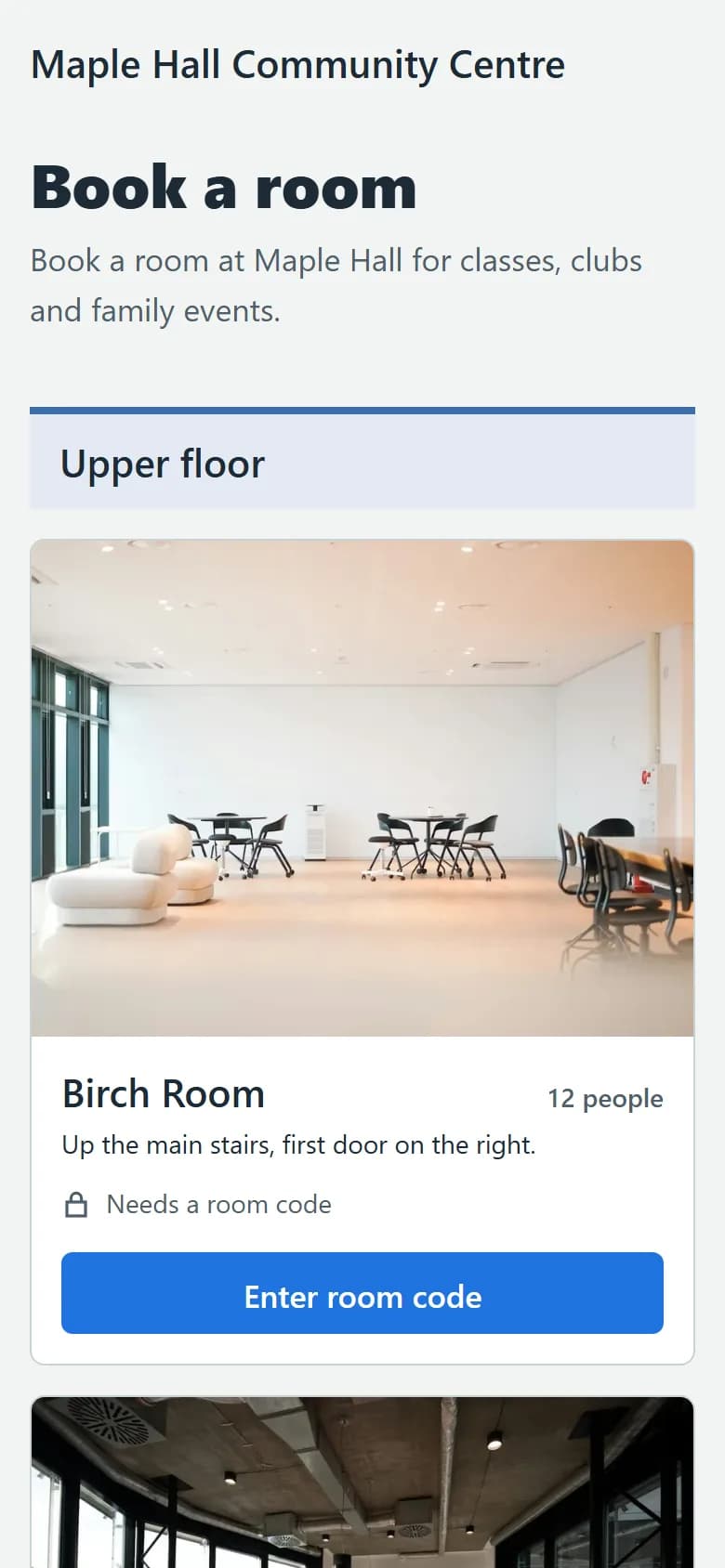
The booking site lists every room under its floor, with its photo, how many people it holds, and today's free time at a glance. Tap a room to book it.
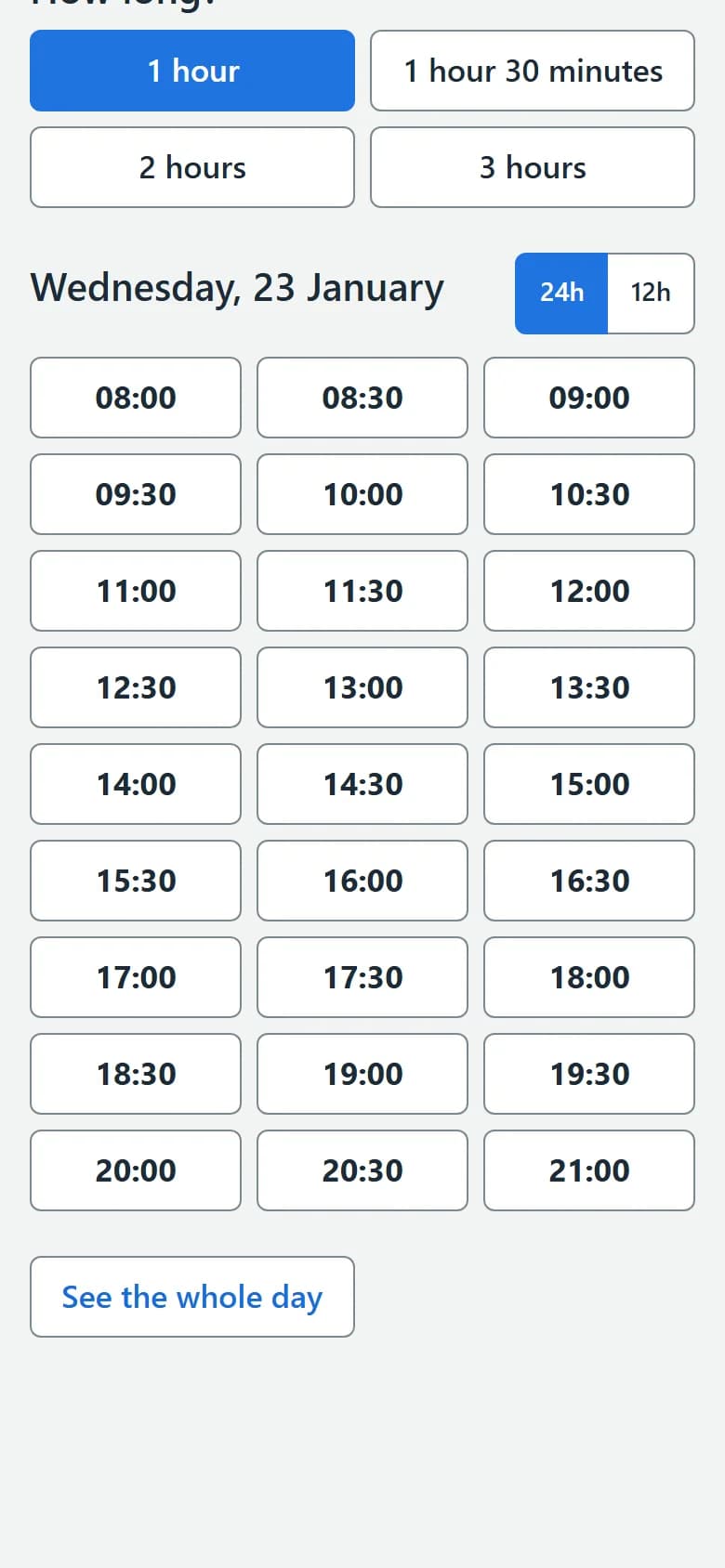
Choose a day, a length and a start time
The calendar shows the days with free time. Choose how long you need, then one of the start times that fit. Every time is in the building's time zone.
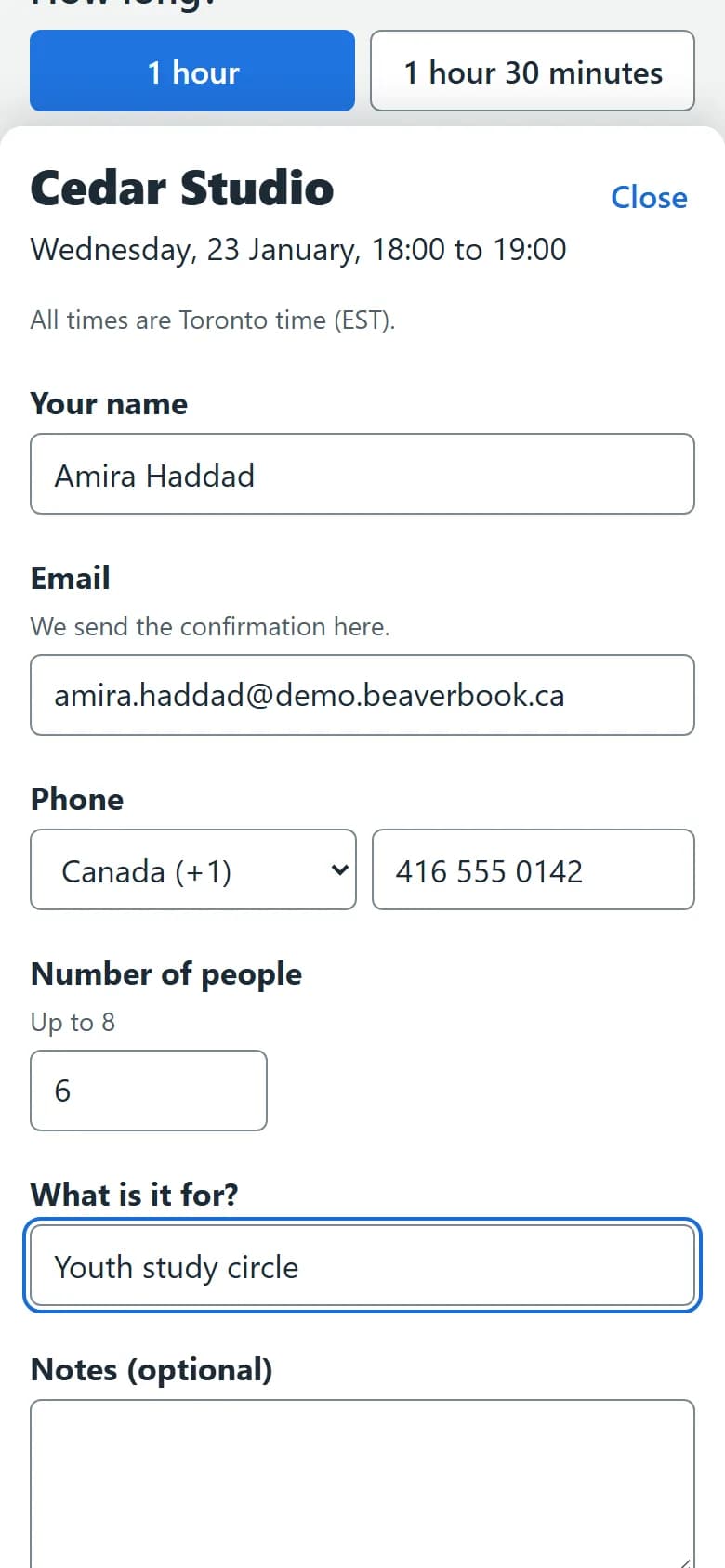
Tell them who you are
Your name, email and whatever else the building asks. No account and no password.
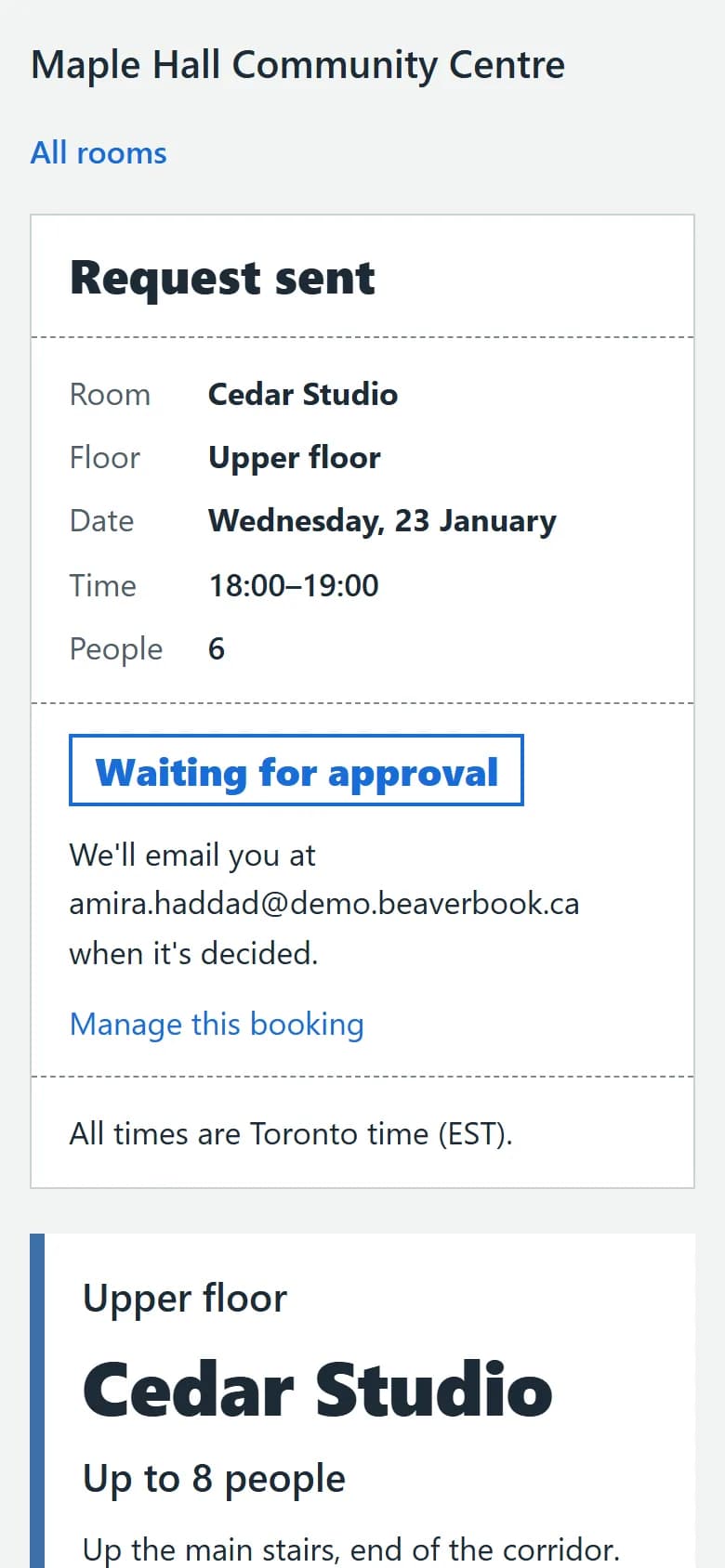
Get your confirmation
You see your booking straight away, and get an email with a calendar file. If the room needs approval, you hear back as soon as it's decided.
Change or cancel yourself
The email has a private link: move the booking to another time or cancel it, without calling anyone.
Admins
For admins
Rooms and floors
Add floors and rooms with photos, capacity, features and directions. Choose the lengths people can book and the one that's preselected.
Opening hours and closures
Set each room's weekly hours; add closures for holidays or maintenance, for one room or the whole building.
Approvals
Each room either confirms at once or waits for you. Requests arrive by email with Approve and Decline, and on the Requests screen.
demo.beaverbook.ca 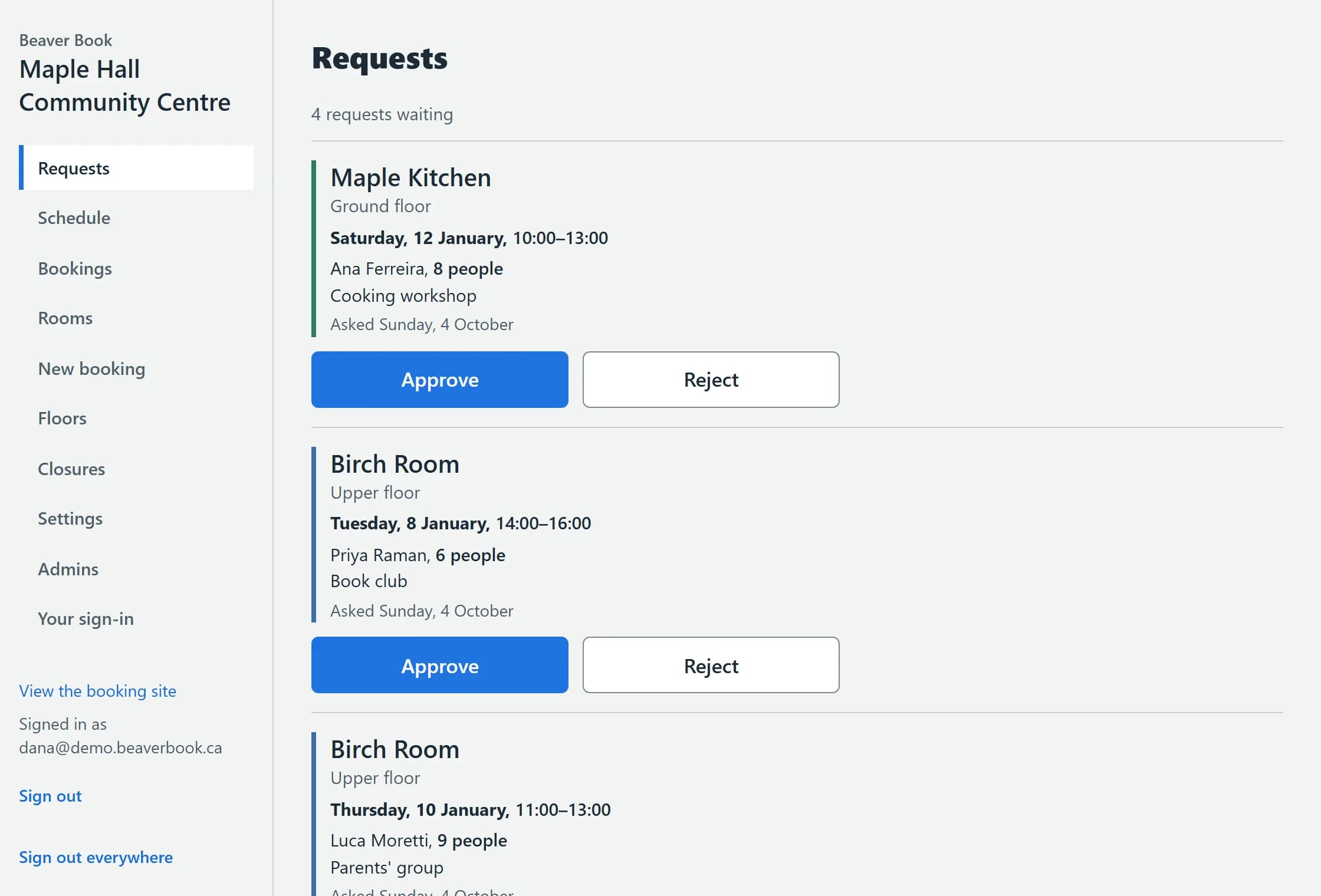
Room codes
Give a room a code, and only people who have it can see its calendar and book it. Change the code whenever you like.
Form questions
Decide which questions people answer: phone, number of people, what the booking is for, and your own questions, including choice lists. A preview shows the form as members see it.
demo.beaverbook.ca 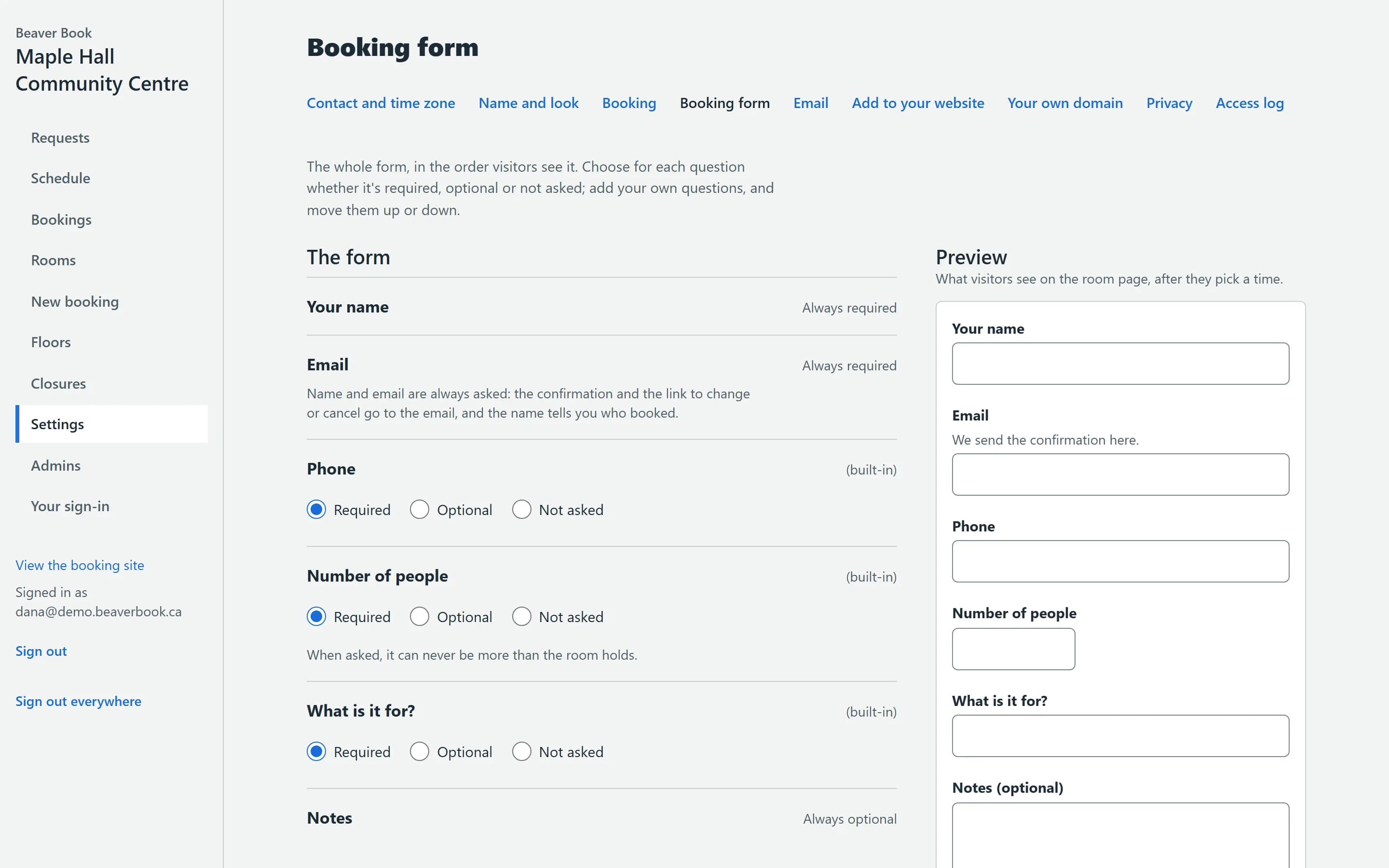
Emails
Confirmations, reminders and calendar invites go out in your name and your colours, from your mailbox if you have one. Add your own lines to each email.
demo.beaverbook.ca 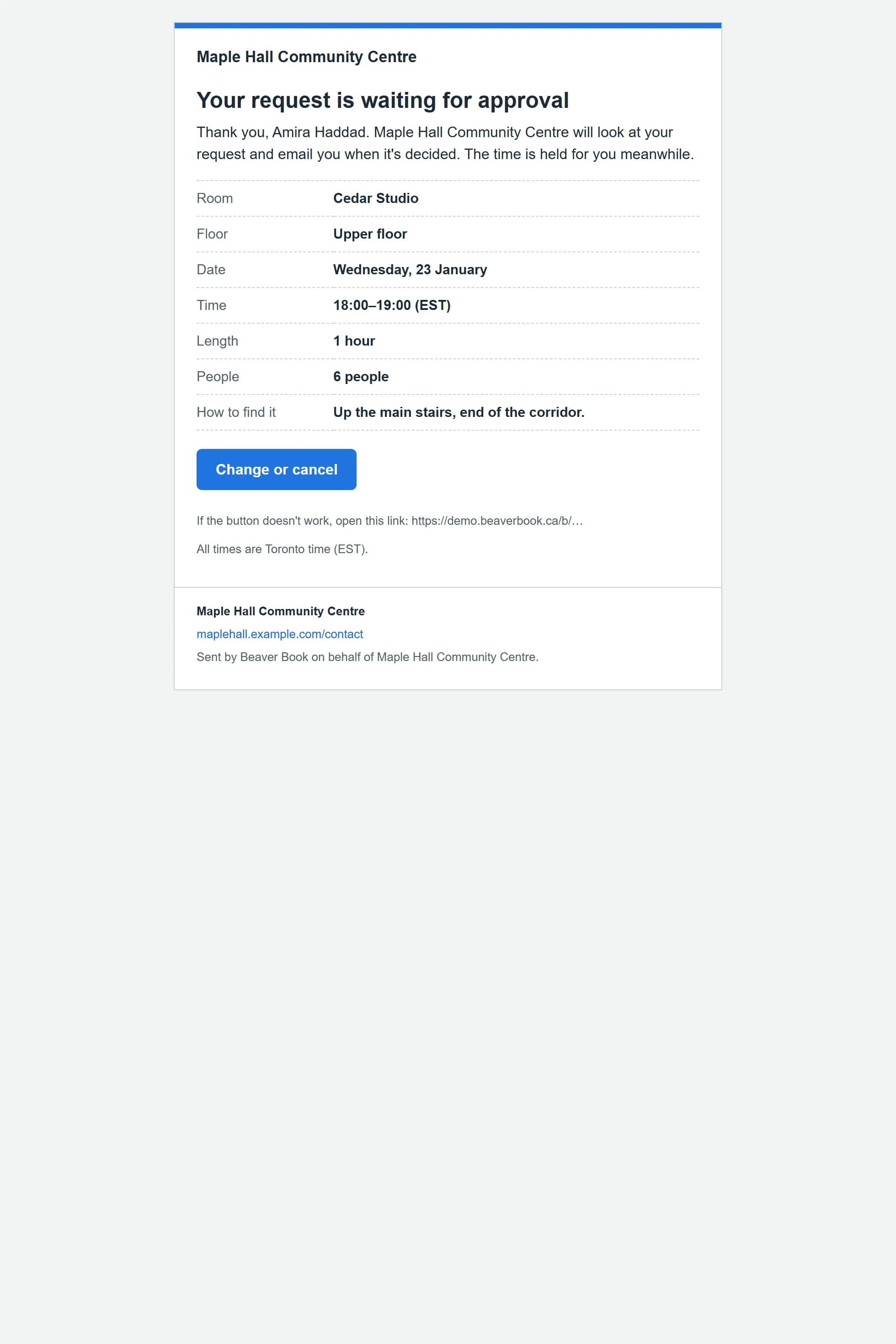
Branding
Your logo, colour, building photo and introduction, with a live preview before you save.
demo.beaverbook.ca 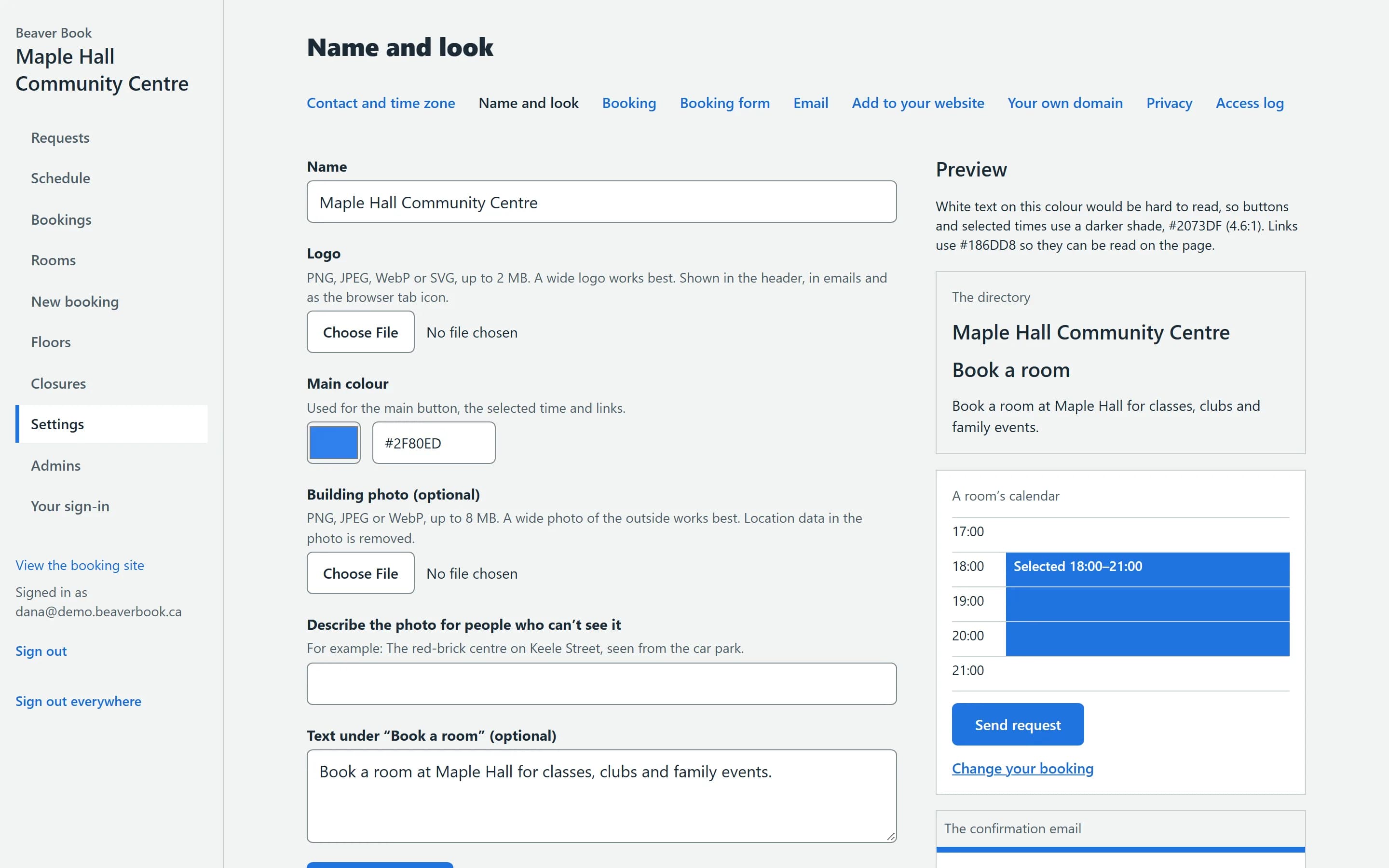
Your website
Link to your booking site, add a button, or show the booking pages inside your own website.
The schedule
See every room side by side, day by day or a week at a time; open any booking; download bookings as a spreadsheet.
demo.beaverbook.ca 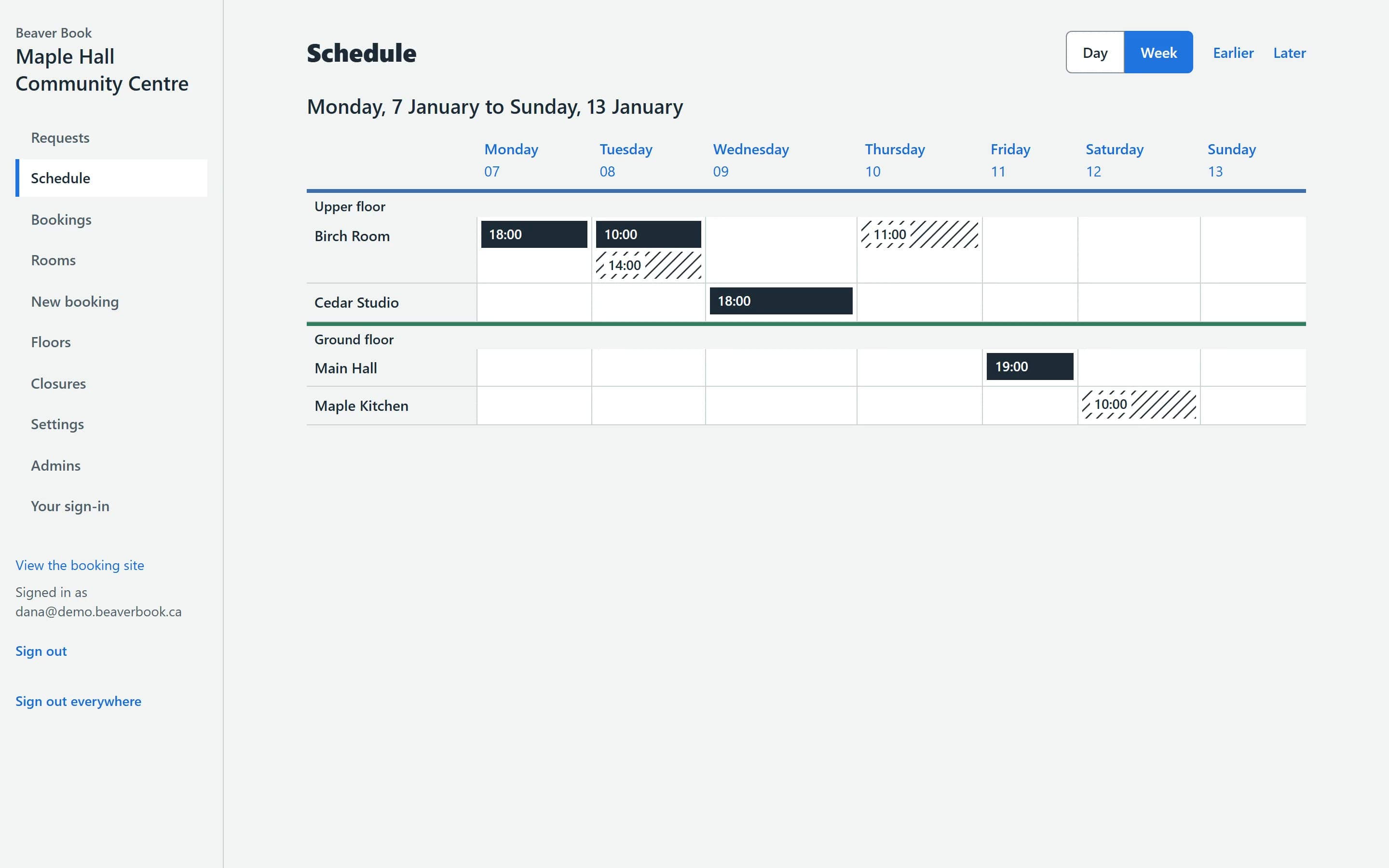
Your team
Invite people as owners, admins or viewers. Viewers see the schedule without members' contact details. Owners and super admins always use two-step sign-in.